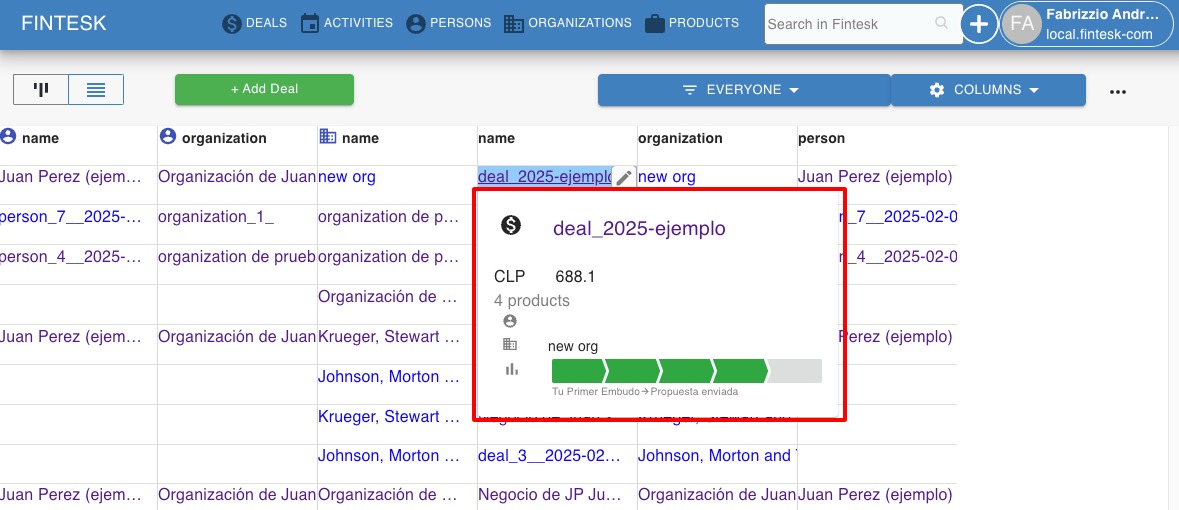
List view
The list view is one of the ways data is displayed in Fintesk, using a clear, linear view to make all of your information easily visible.
The following sections in your Fintesk account have a list view display:
- Deals
- Contacts (persons and organizations)
- Activities
- Products
What can I do in the list view?
The list view supports several actions:
Adding items
Use the “+ Add [item]” button at the top of your list view to add new items.
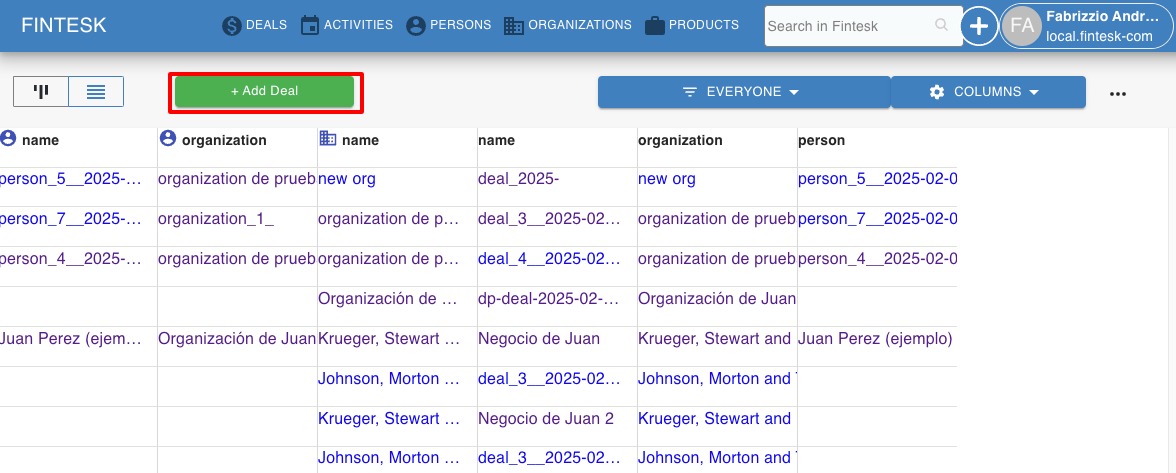
Note: The above example is from the deal list view and shows the “+ Add Deal” button, which is used to add new deals.
Filtering
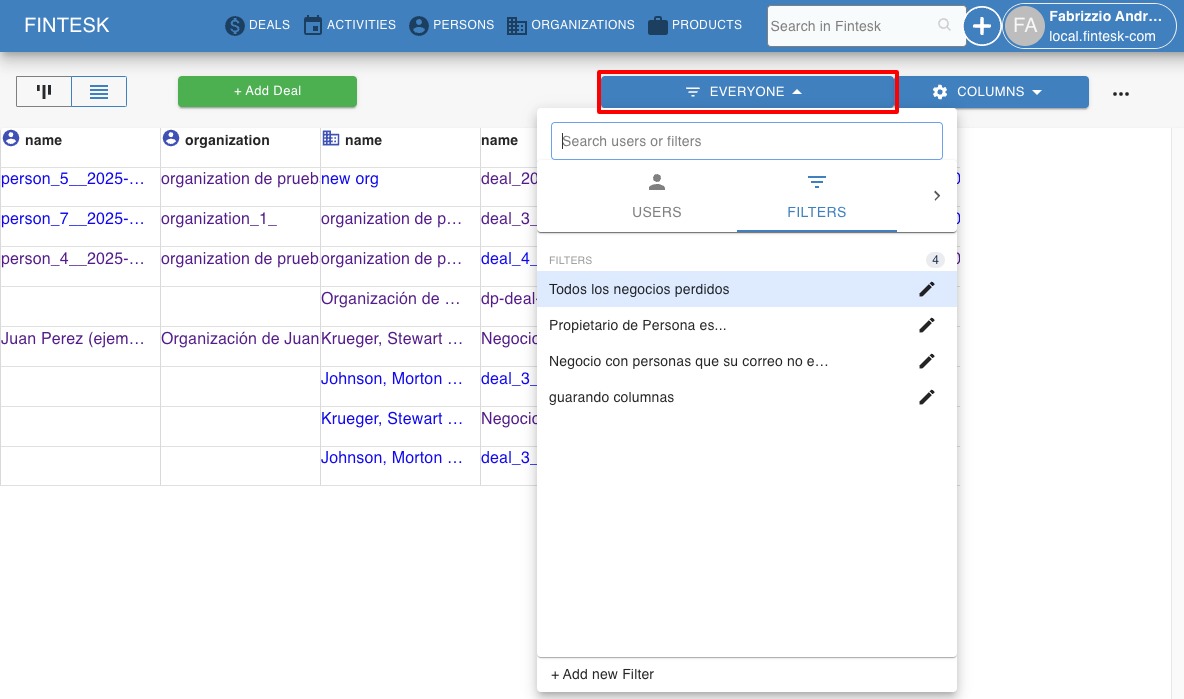
Click the dropdown menu in the top right corner to add or apply existing filters to your list view.
Changing columns
Click the gear icon on the right side of the screen to adjust the visible columns in your list view.
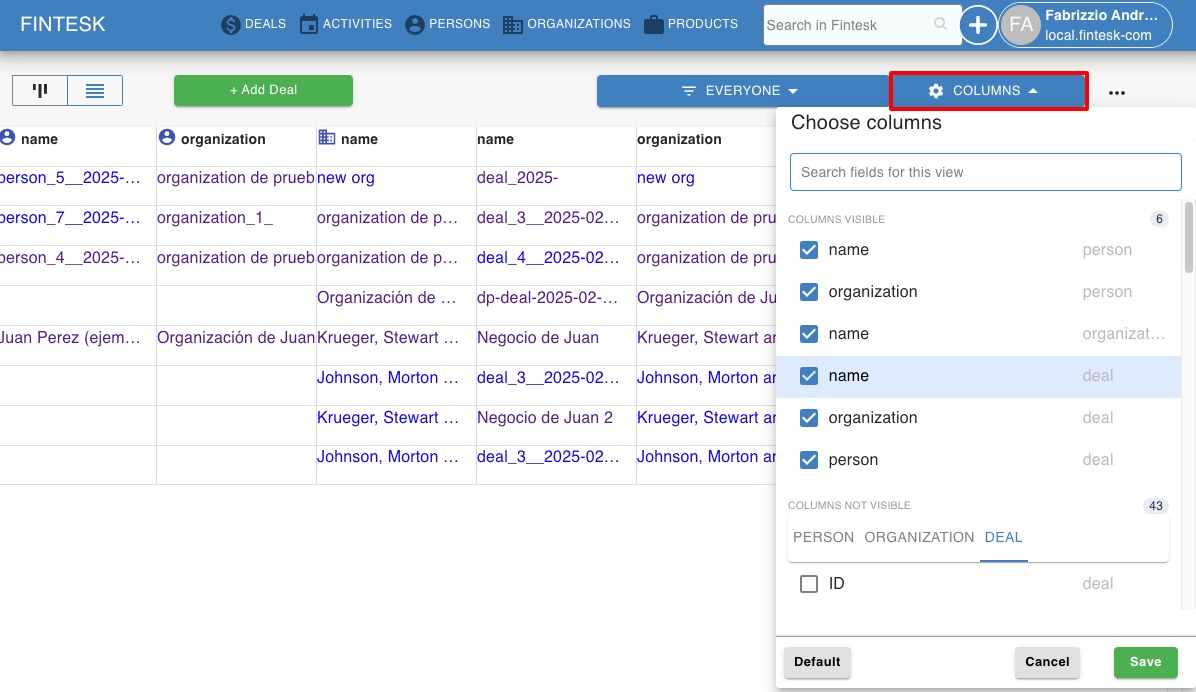
Note: For more information about changing your list view columns, check out this guide.
Editing field values
If you hover over a field in the deal, person, organization, activity or product list view, you can click the pencil icon to edit that field’s value.
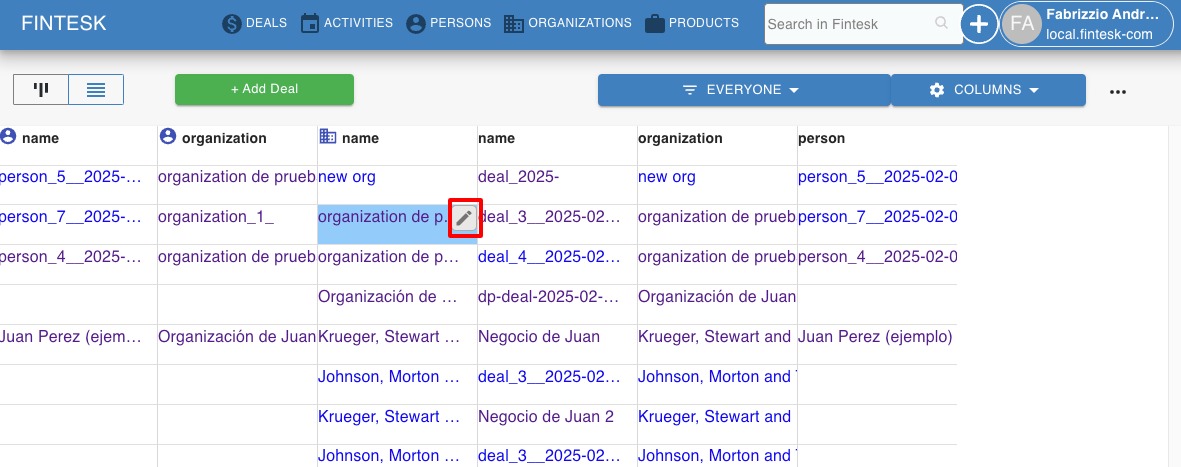
Note: Some fields, like activity “add time,” can’t be edited through the list view.
Hovercards in the list view
Note: You can click on a person or organization in a hovercard to see the item’s detail view.
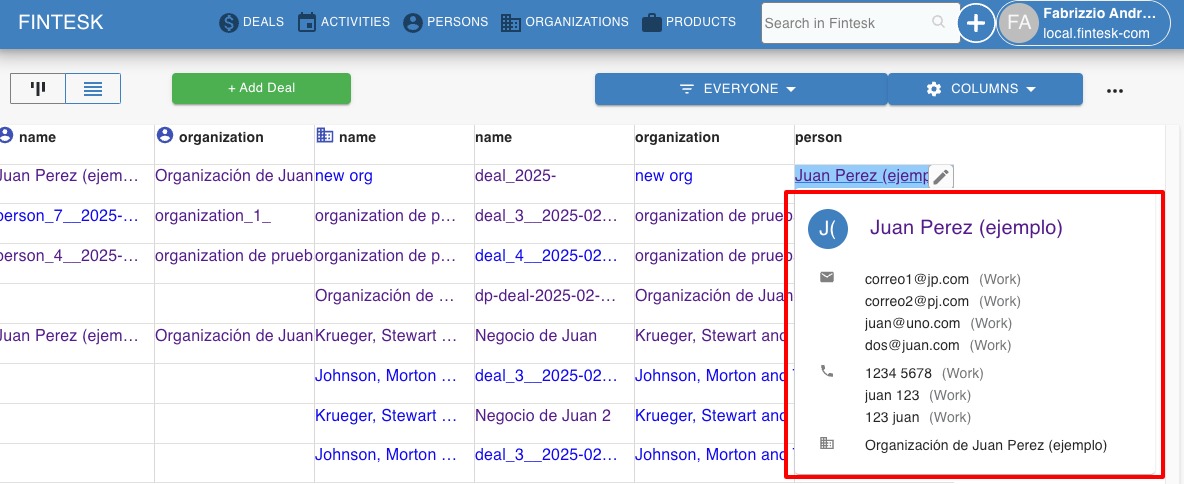
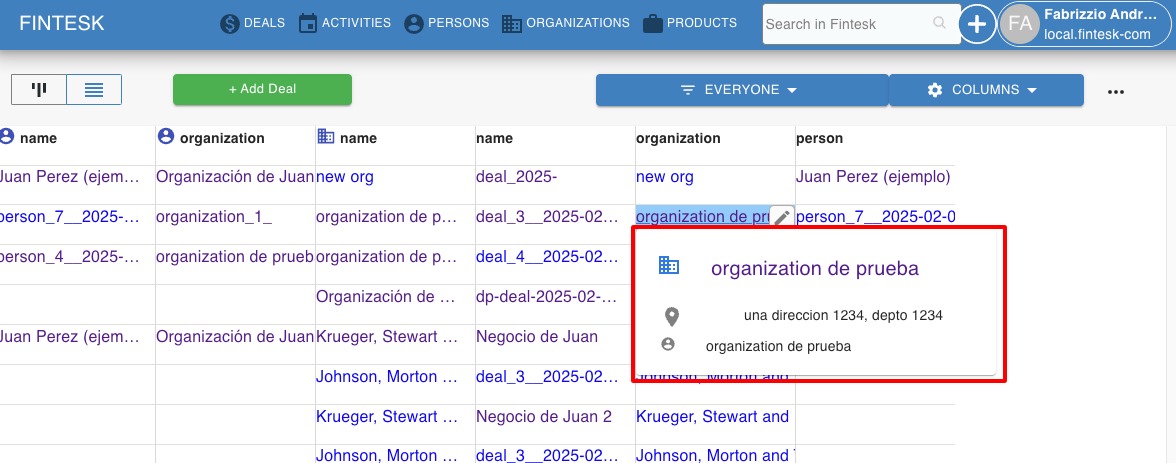
If you hover your cursor over a person, organization or deal in the list view, a card will open up and show the item’s basic information.
- Persons – The card has the person’s name, email, phone and linked organization.
- Organizations – The card has the organization’s name, address and linked person.
- Deals – The card has the deal title, value, linked person or organization and current pipeline and stage.